

If you’re a POD creator or marketer, you know the pain: spending 30+ minutes in Photoshop trying to remove image backgrounds for product designs, social media posts, or video covers—only to end up with messy edges. In 2026, Canva’s one-click background removal tool solves this in 10 seconds flat, no design skills required. As someone who uses this hack daily for POD sticker designs and marketing visuals (it cut my workflow time by 80%), I’m breaking down exactly how to use it—plus why Canva Pro is a game-changer for POD and marketing pros.
Why Background Removal Matters for POD & Marketing (2026)
For POD creators: You need clean, transparent-background designs for t-shirts, mugs, or stickers (blurry edges or leftover background ruin product previews).
For marketers: Polished, cutout visuals make social media posts, video covers, and ads stand out (think a product shot with no background, or a customer testimonial image layered onto a promo graphic).
The best part? Canva lets you skip Photoshop entirely—you can even grab copyright-free images directly from its library and edit them in one place.
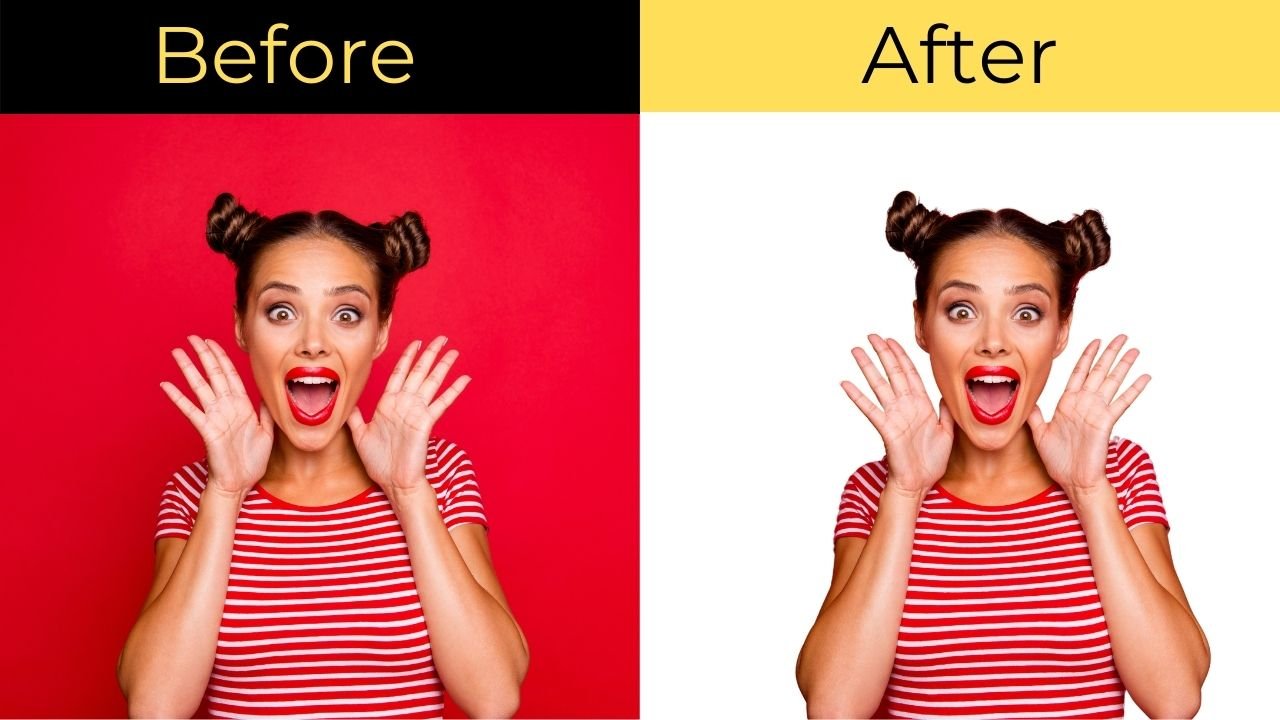
Step-by-Step: 10-Second Canva Background Removal (POD/Marketing-Focused)
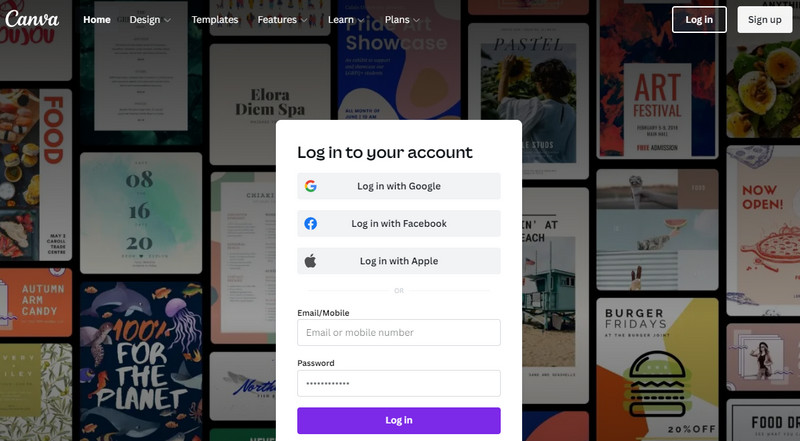
Step 1: Log In to Canva (Free or Pro)
If you don’t have an account, sign up for free. For POD creators, I recommend Canva Pro (15% off via our link)—it unlocks transparent background downloads (critical for POD designs!).
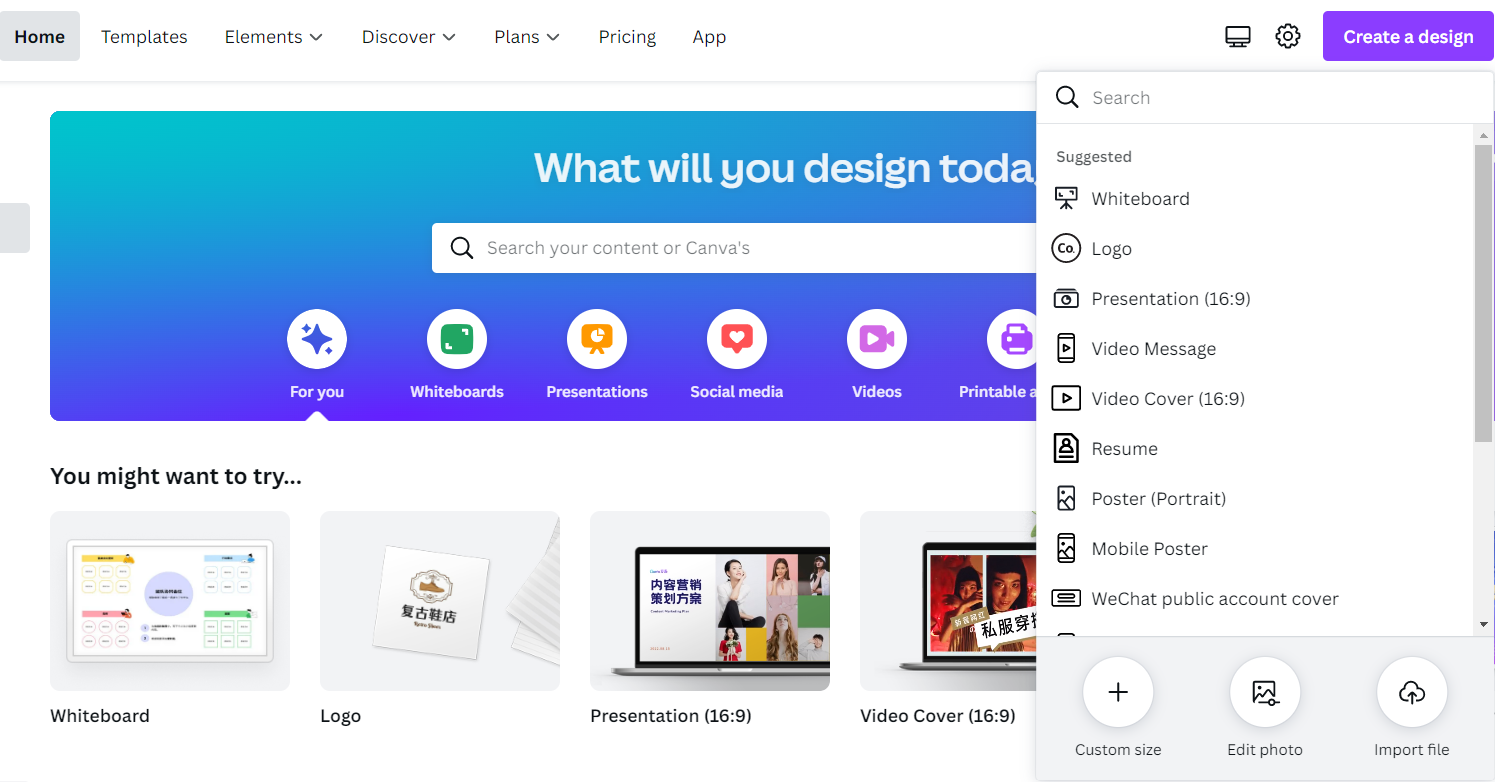
Step 2: Set Your Canvas for Your Use Case
- POD Design: Choose a “Custom Size” (e.g., 2000x2000px for stickers/mug designs) or use Canva’s pre-made “T-Shirt Design” template.
- Marketing Visual: Pick a template (e.g., “Instagram Post” or “YouTube Thumbnail”) to match your platform.
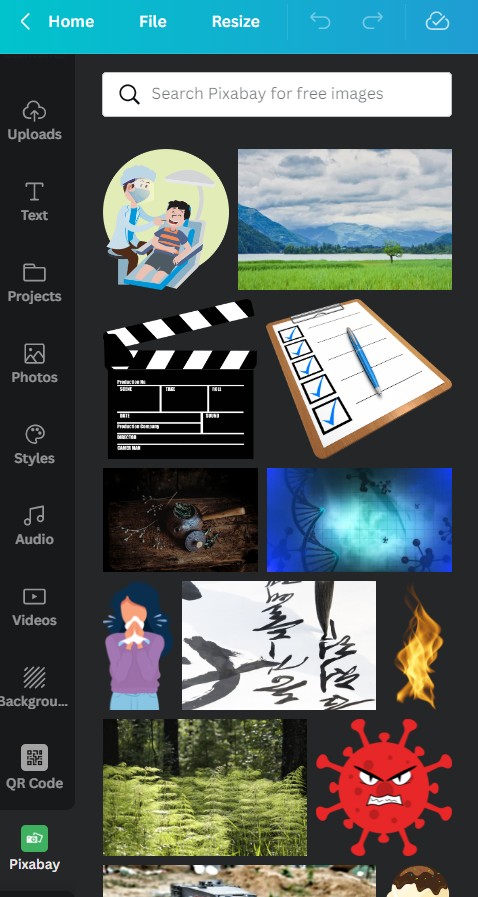
Step 3: Grab a Copyright-Free Image (or Upload Your Own)
- Free for POD/Marketing: Use Canva’s built-in Pixabay/Pexels library (left toolbar → “Photos”)—search for niche keywords (e.g., “cottagecore mushroom” for POD, “smiling customer” for ads) to find high-quality, royalty-free images.
- Upload Your Own: If you have a logo, product photo, or custom illustration (e.g., your POD design sketch), click “Uploads” → “Upload files” to add it.
Step 4: One-Click Background Removal (The 10-Second Hack!)
Click on your image → Select “Edit image” (top toolbar) → In the left panel, click “Remove background”.
That’s it. Canva’s AI instantly cuts out your subject—no manual erasing, no messy edges. For POD creators, this means you can turn a stock mushroom image into a clean sticker design in seconds; for marketers, you can isolate a customer photo to layer onto a sale banner.

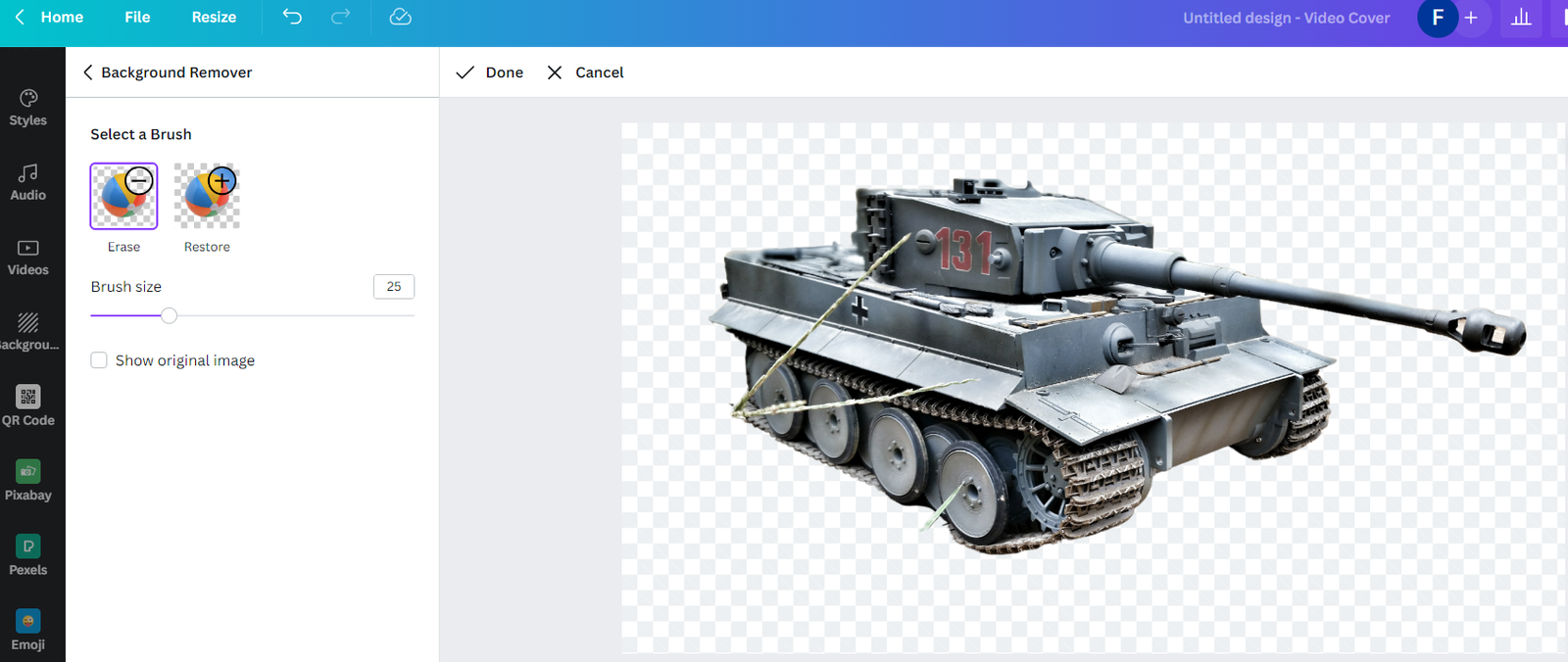
Step 5: Fine-Tune for POD/Marketing Perfection
- Resize/Position: Drag your cutout image to fit your POD template (e.g., center a mushroom on a mug mockup) or marketing graphic (e.g., place a customer photo next to your product).
- Add Text/Effects: For POD, add niche text (e.g., “Plant Mom 2026”) with Canva’s fonts; for marketing, add a CTA (e.g., “Shop Now →”) to drive clicks.
Step 6: Download (Transparent Background for POD!)
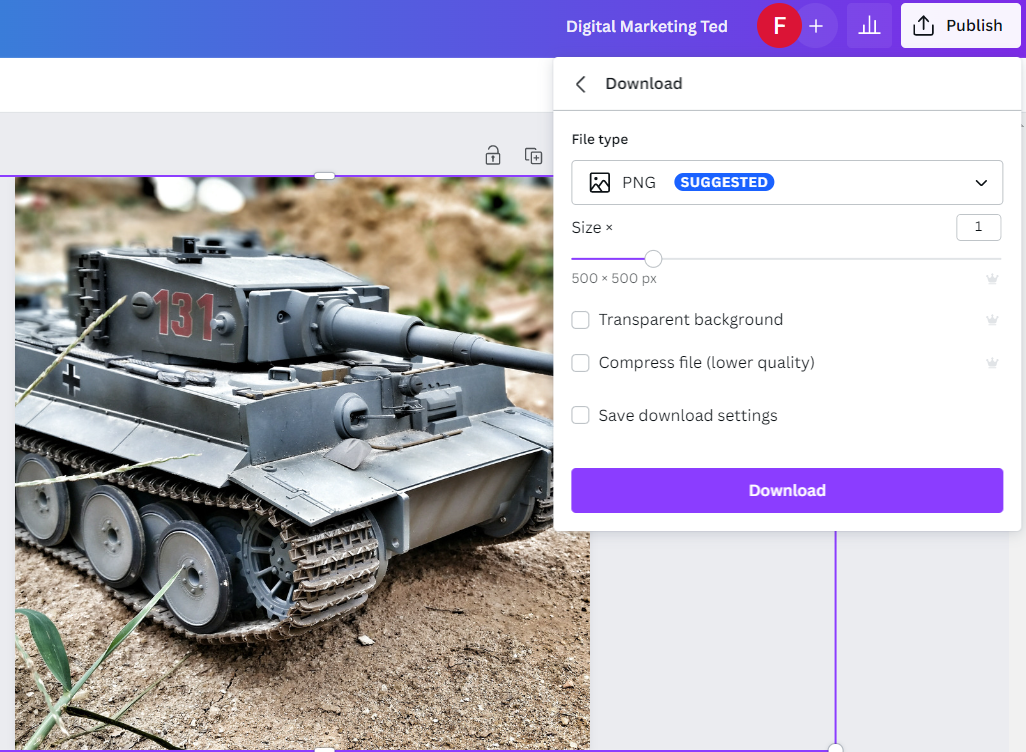
- Free Plan: Download as a JPG/PNG (note: free downloads have a small Canva watermark).
- Canva Pro: Click “Download” → Select “PNG” → Check “Transparent background” → Save. This is non-negotiable for POD—transparent designs look professional on any product, and platforms like Redbubble/Printful prefer them.
Canva Pro for POD/Marketing: Why It’s Worth It (2026)
Free Canva is great for beginners, but Canva Pro (15% off via our link) unlocks must-have features:
- No Watermarks: Your POD designs and marketing visuals look polished (no “Canva” logo ruining your work).
- Transparent Backgrounds: Critical for POD—ensure your designs print cleanly on t-shirts, mugs, and stickers.
- Brand Kit: Save your POD shop’s colors/logos or marketing brand assets (fonts, logos) for one-click reuse.
- AI Design Tools: Generate more POD ideas (e.g., “retro gamer cat” + background removal = instant sticker design).
My POD hack: I use Canva Pro’s background removal to turn trending TikTok sounds into sticker designs—e.g., “Girl Math 2026” + a cutout coffee cup image = a top-selling sticker on Redbubble.
Summary: Canva Background Removal = Faster POD Sales & Better Marketing
Canva’s 2026 background removal tool isn’t just a “shortcut”—it’s a productivity booster for POD creators and marketers:
- 10x Faster Than Photoshop: No more learning complex tools like the Pen Tool—AI does the work.
- All-in-One Workflow: Find copyright-free images, remove backgrounds, and design in one platform (no switching between apps).
- POD-Perfect Output: Transparent backgrounds ensure your designs look professional on every product.
Whether you’re making POD stickers for a niche audience or marketing graphics for your shop, this hack will save you hours—and help you create visuals that convert.
👉 Try Canva Pro for Free (15% Off Annual Plan)
Unlock transparent backgrounds and AI design tools to level up your POD and marketing game in 2026!
Disclosure: This post contains affiliate links. If you click through and sign up, I may earn a commission at no extra cost to you. All tips are based on my personal experience using Canva for POD and marketing since 2024.


